
blog
How to Migrate from SQL Server to PostgreSQL HA for Dockerized Apps

For many organizations, migrating from Microsoft SQL Server to PostgreSQL is no longer only about reducing licensing costs. The transition is often part of a broader modernization initiative focused on improving flexibility, scalability, and operational efficiency.
PostgreSQL has evolved into one of the most mature open-source database platforms available today. It is widely adopted across enterprise environments because of its reliability, extensibility, and compatibility with modern cloud-native architectures.
Compared to traditional proprietary database environments, PostgreSQL gives organizations greater freedom in how infrastructure is deployed and managed. This becomes especially important for teams adopting containerized applications, DevOps workflows, and highly available database architectures.
Another major factor is operational flexibility. PostgreSQL supports native replication, extensive monitoring integrations, and strong ecosystem tooling, making it suitable for both traditional on-premise deployments and modern distributed environments.
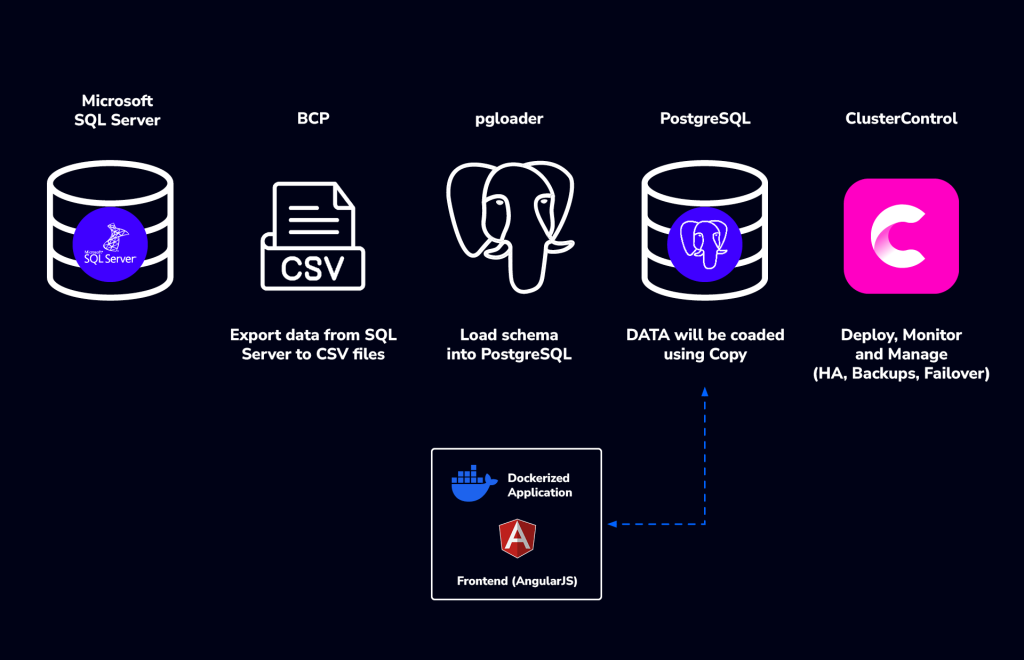
The resulting architecture combines:
- Microsoft SQL Server as the source platform
- PostgreSQL as the destination database
- BCP and
pgloaderfor migration - Dockerized application services
- PostgreSQL Streaming Replication
- ClusterControl for deployment, monitoring, and failover management
Why Use BCP and pgloader?
Database migrations often become complicated when schema conversion and data migration are handled simultaneously. Using pgloader for schema migration while leveraging BCP exports for bulk data movement provides better visibility and control during the migration process.
pgloaderhandles schema conversion from SQL Server to PostgreSQL- BCP exports table data into CSV format
- PostgreSQL COPY operations import data efficiently into the target database
This separation simplifies troubleshooting and works particularly well for large databases where direct migrations may become difficult to manage.
Exporting SQL Server Data Using BCP
One of the biggest challenges during database migration is handling large volumes of data efficiently without creating unnecessary complexity. Instead of relying entirely on direct database-to-database migration tools, this migration approach separates schema migration from data migration. This provides more control during troubleshooting and simplifies validation throughout the migration process.
For the data export phase, the SQL Server BCP utility is used to extract table contents into CSV files. BCP, or Bulk Copy Program, is a native SQL Server utility designed for high-speed data export and import operations. Because it works efficiently with large datasets, it remains a practical option for enterprise migrations involving thousands or even millions of rows.
The export workflow automatically:
- Detects all tables from multiple databases
- Preserves schema naming
- Generates CSV files per table
- Produces migration logs for validation and troubleshooting
Example BCP export command:
bcp "LargeDB.dbo.Products" out "dbo_Products.csv" \
 -c -t"," -S server -U sa -P password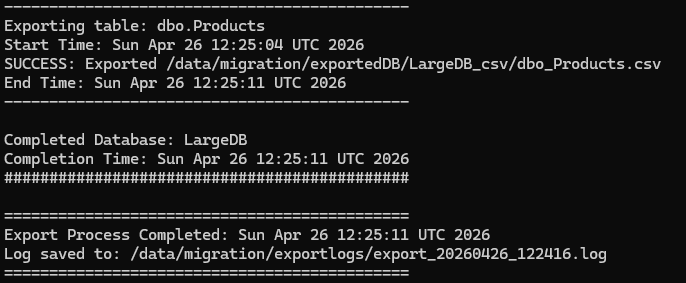
Example output:
| SQL Server Table | CSV File |
| dbo.Customers | dbo_Customers.csv |
| sales.Invoice | sales_Invoice.csv |
| hr.Employee | hr_Employee.csv |
For extracting multiple databases, you can use this script:
#!/bin/bash

DATABASES=(
    "AdventureWorksDW2022"
    "LargeDB"
)

# SQL Server connection
SERVER="<hostname>"
USER="sa"
PASS="Password"

# Export directory
BASE_EXPORT_DIR="/data/migration/exportedDB"

# Export logs
LOG_DIR="/data/migration/exportlogs"

TIMESTAMP=$(date +"%Y%m%d_%H%M%S")
LOG_FILE="$LOG_DIR/export_$TIMESTAMP.log"

mkdir -p "$LOG_DIR"

echo "=============================================" | tee -a "$LOG_FILE"
echo "SQL Server CSV Export Started: $(date)" | tee -a "$LOG_FILE"
echo "Server: $SERVER" | tee -a "$LOG_FILE"
echo "Log File: $LOG_FILE" | tee -a "$LOG_FILE"
echo "=============================================" | tee -a "$LOG_FILE"

# =============================================
# Loop through each database
# =============================================

for DB in "${DATABASES[@]}"
do
    EXPORT_DIR="${BASE_EXPORT_DIR}/${DB}_csv"

    mkdir -p "$EXPORT_DIR"

    echo "" | tee -a "$LOG_FILE"
    echo "#############################################" | tee -a "$LOG_FILE"
    echo "Processing Database: $DB" | tee -a "$LOG_FILE"
    echo "Export Directory: $EXPORT_DIR" | tee -a "$LOG_FILE"
    echo "Start Time: $(date)" | tee -a "$LOG_FILE"
    echo "#############################################" | tee -a "$LOG_FILE"

    # =============================================
    # Get all base tables with schema + table name
    #
    # Example:
    # dbo.Customers
    # hr.Employee
    # sales.Invoice
    # =============================================

    TABLES=$(sqlcmd -S "$SERVER" -U "$USER" -P "$PASS" -d "$DB" \
    -Q "SET NOCOUNT ON;
        SELECT TABLE_SCHEMA + '.' + TABLE_NAME
        FROM INFORMATION_SCHEMA.TABLES
        WHERE TABLE_TYPE = 'BASE TABLE'
        ORDER BY TABLE_SCHEMA, TABLE_NAME;" \
    -h -1 -W)

    # =============================================
    # Loop through each table
    # =============================================

    for T in $TABLES
    do
        echo "" | tee -a "$LOG_FILE"
        echo "---------------------------------------------" | tee -a "$LOG_FILE"
        echo "Exporting table: $T" | tee -a "$LOG_FILE"
        echo "Start Time: $(date)" | tee -a "$LOG_FILE"

        # Convert schema.table → schema_table
        #
        # Example:
        # dbo.Customers → dbo_Customers.csv
        # hr.Employee   → hr_Employee.csv

        SAFE_FILENAME=$(echo "$T" | tr '.' '_')

        bcp "${DB}.${T}" out "${EXPORT_DIR}/${SAFE_FILENAME}.csv" \
            -c \
            -t"," \
            -S "$SERVER" \
            -U "$USER" \
            -P "$PASS" \
            >> "$LOG_FILE" 2>&1

        if [ $? -eq 0 ]; then
            echo "SUCCESS: Exported ${EXPORT_DIR}/${SAFE_FILENAME}.csv" | tee -a "$LOG_FILE"
        else
            echo "FAILED: Export failed for table $T" | tee -a "$LOG_FILE"
        fi

        echo "End Time: $(date)" | tee -a "$LOG_FILE"
        echo "---------------------------------------------" | tee -a "$LOG_FILE"
    done

    echo "" | tee -a "$LOG_FILE"
    echo "Completed Database: $DB" | tee -a "$LOG_FILE"
    echo "Completion Time: $(date)" | tee -a "$LOG_FILE"
    echo "#############################################" | tee -a "$LOG_FILE"

done

echo ""
echo "=============================================" | tee -a "$LOG_FILE"
echo "Export Process Completed: $(date)" | tee -a "$LOG_FILE"
echo "Log saved to: $LOG_FILE" | tee -a "$LOG_FILE"
echo "=============================================" | tee -a "$LOG_FILE"
Migrating the PostgreSQL Schema
Instead of migrating both schema and data together, pgloader is used only for schema generation.
Example pgloader configuration:
LOAD DATABASE
 	FROM mssql://sa:password@server/AdventureWorksDW2022
 	INTO postgresql://postgres:password@localhost/adventureworksdw2022
WITH schema only; 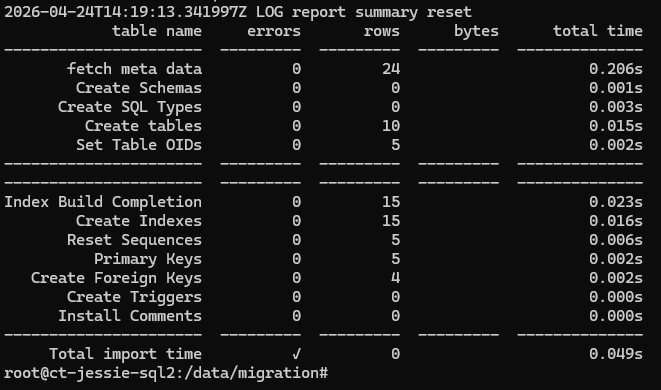
Some manual review may still be required for constraints, identity columns, and SQL Server-specific objects. Once executed, pgloader converts:
- Tables
- Indexes
- Constraints
- Basic data types
Importing Data into PostgreSQL
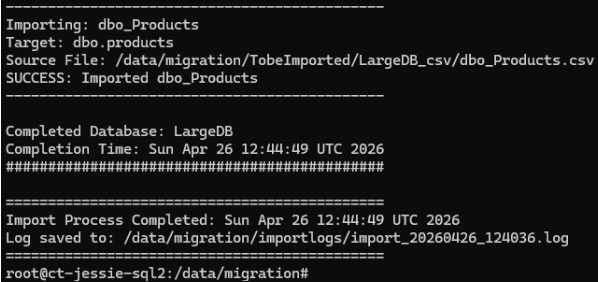
After transferring CSV files to the PostgreSQL server, the import process can be automated using PostgreSQL COPY operations. Using COPY provides much better performance compared to INSERT-based imports and is particularly useful during large-scale migrations. The migration logic maps:
- dbo schema into PostgreSQL public schema
- Non-dbo schemas into matching PostgreSQL schemas
Common Migration Considerations: Even relatively straightforward migrations from SQL Server to PostgreSQL usually require adjustments.
Schema and Naming Differences: SQL Server environments are often case-insensitive, while PostgreSQL behaves differently with quoted identifiers.
Data Type Conversion: Several SQL Server data types require PostgreSQL equivalents.
| SQL Server | PostgreSQL |
| DATETIME | TIMESTAMP |
| UNIQUEIDENTIFIER | UUID |
| BIT | BOOLEAN |
| MONEY | NUMERIC |
For importing multiple databases, you can use this script:
#!/bin/bash

DATABASES=(
    "AdventureWorksDW2022"
    "LargeDB"
)

# PostgreSQL connection
PG_USER="postgres"
PG_PASS="Password"
PG_HOST="localhost"

# CSV source directory
BASE_IMPORT_DIR="/data/migration/TobeImported"

# Import logs
LOG_DIR="/data/migration/importlogs"

TIMESTAMP=$(date +"%Y%m%d_%H%M%S")
LOG_FILE="$LOG_DIR/import_$TIMESTAMP.log"

mkdir -p "$LOG_DIR"

export PGPASSWORD="$PG_PASS"

echo "=============================================" | tee -a "$LOG_FILE"
echo "PostgreSQL CSV Import Started: $(date)" | tee -a "$LOG_FILE"
echo "Log File: $LOG_FILE" | tee -a "$LOG_FILE"
echo "=============================================" | tee -a "$LOG_FILE"

# =============================================
# Loop through each database
# =============================================

for DB in "${DATABASES[@]}"
do
    # Keep exact case for Linux path
    IMPORT_DIR="${BASE_IMPORT_DIR}/${DB}_csv"

    # PostgreSQL DB name lowercase
    PG_DB=$(echo "$DB" | tr '[:upper:]' '[:lower:]')

    echo "" | tee -a "$LOG_FILE"
    echo "#############################################" | tee -a "$LOG_FILE"
    echo "Processing Database: $DB" | tee -a "$LOG_FILE"
    echo "CSV Directory: $IMPORT_DIR" | tee -a "$LOG_FILE"
    echo "Target PostgreSQL DB: $PG_DB" | tee -a "$LOG_FILE"
    echo "Start Time: $(date)" | tee -a "$LOG_FILE"
    echo "#############################################" | tee -a "$LOG_FILE"

    # Skip missing folder
    if [ ! -d "$IMPORT_DIR" ]; then
        echo "WARNING: CSV directory not found for $DB" | tee -a "$LOG_FILE"
        echo "Skipping database: $DB" | tee -a "$LOG_FILE"
        continue
    fi

    # =============================================
    # Loop through CSV files
    # =============================================

    for file in "$IMPORT_DIR"/*.csv
    do
        [ -e "$file" ] || continue

        filename=$(basename "$file" .csv)

        # -----------------------------------------
        # Examples:
        #
        # dbo_DimCustomer
        # → public.dimcustomer
        #
        # hr_Employee
        # → hr.employee
        #
        # sales_Invoice
        # → sales.invoice
        # -----------------------------------------

        schema_prefix=$(echo "$filename" | cut -d'_' -f1 | tr '[:upper:]' '[:lower:]')
        table=$(echo "$filename" | cut -d'_' -f2- | tr '[:upper:]' '[:lower:]')

        # dbo → public
        if [ "$schema_prefix" = "dbo" ]; then
            schema="public"
        else
            schema="$schema_prefix"
        fi

        echo "" | tee -a "$LOG_FILE"
        echo "---------------------------------------------" | tee -a "$LOG_FILE"
        echo "Importing: $filename" | tee -a "$LOG_FILE"
        echo "Target: ${schema}.${table}" | tee -a "$LOG_FILE"
        echo "Source File: $file" | tee -a "$LOG_FILE"

        # IMPORTANT:
        # \COPY must stay in ONE LINE

        psql -U "$PG_USER" \
             -h "$PG_HOST" \
             -d "$PG_DB" \
             -c "\COPY ${schema}.${table} FROM '$file' WITH (FORMAT csv, DELIMITER ',', HEADER false);" \
             >> "$LOG_FILE" 2>&1

        if [ $? -eq 0 ]; then
            echo "SUCCESS: Imported $filename" | tee -a "$LOG_FILE"
        else
            echo "FAILED: Import failed for $filename" | tee -a "$LOG_FILE"
        fi

        echo "---------------------------------------------" | tee -a "$LOG_FILE"
    done

    echo "" | tee -a "$LOG_FILE"
    echo "Completed Database: $DB" | tee -a "$LOG_FILE"
    echo "Completion Time: $(date)" | tee -a "$LOG_FILE"
    echo "#############################################" | tee -a "$LOG_FILE"

done

echo ""
echo "=============================================" | tee -a "$LOG_FILE"
echo "Import Process Completed: $(date)" | tee -a "$LOG_FILE"
echo "Log saved to: $LOG_FILE" | tee -a "$LOG_FILE"
echo "=============================================" | tee -a "$LOG_FILE"
Constraints and Dependencies: Foreign key ordering can sometimes interrupt bulk imports. In larger migrations, constraints are often validated after data loading completes.
Managing PostgreSQL Schemas: By default, SQL Server dbo schema may remain as dbo in PostgreSQL. If preferred, move objects into the PostgreSQL default public schema. Generate ALTER statements and execute the generated statements afterward.
SELECT
 	'ALTER TABLE dbo.' || tablename || ' SET SCHEMA public;'
 FROM pg_tables
 WHERE schemaname = 'dbo';
Common Pitfalls: During SQL Server to PostgreSQL migration, organizations commonly encounter issues related to case sensitivity differences, data type conversion, identity column handling, and foreign key constraint ordering, particularly when loading large datasets into PostgreSQL.
Dockerized Application Architecture: The migration was also designed around a Dockerized AngularJS application stack. Containerized deployments increasingly require database environments that are:
- Flexible
- Highly available
- Easier to scale
- Easier to monitor
PostgreSQL integrates well into these environments, particularly when paired with replication and centralized operational tooling. The resulting architecture allows application services running in Docker containers to connect directly to a highly available PostgreSQL backend.
Data Validation and Testing: After importing data into PostgreSQL, validate the migration by comparing row counts, verifying table structures, indexes, constraints, application connectivity, and converted database logic between SQL Server and PostgreSQL.
Installing ClusterControl
Combining PostgreSQL with ClusterControl helps organizations modernize database infrastructure by simplifying deployment, monitoring, backups, failover management, and replication visibility while improving high availability, operational resiliency, and compatibility with Dockerized and cloud-native application environments.

ClusterControl can be installed on a dedicated management server using the provided installation script, after which administrators can access the web interface to deploy and manage PostgreSQL Streaming Replication environments.
Adding High Availability with ClusterControl
After migration, the PostgreSQL environment was integrated with ClusterControl to establish Streaming Replication and centralized operational management.
The deployment consists of:
| Node | Role |
| PostgreSQL Node 1 | Primary |
| PostgreSQL Node 2 | Replica |
| PostgreSQL Node 3 | Replica |
| ClusterControl Server | Monitoring and Management |
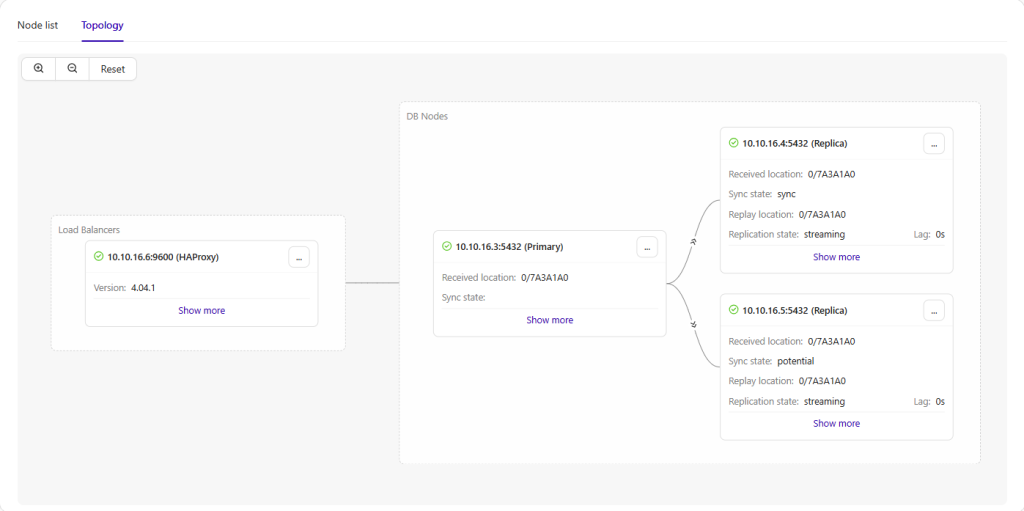
Deploying PostgreSQL Streaming Replication with ClusterControl simplifies operational tasks by automating much of the complexity involved in configuring, managing, and maintaining PostgreSQL replication across multiple nodes, with ClusterControl simplifies operational tasks such as:
- Streaming replication deployment
- Failover handling
- Backup management
- Monitoring and alerting
- Replication visibility
- Node recovery operations
PostgreSQL Streaming Replication
Streaming Replication continuously ships WAL changes from the primary node to replica nodes. This architecture improves:
- High availability
- Read scalability
- Disaster recovery readiness
- Operational resiliency
Once the migrated database is imported into the PostgreSQL primary node, replication automatically propagates changes across replicas. Replication status can be validated using:
SELECT * FROM pg_stat_replication;Replica nodes should appear in streaming state with minimal replication lag.
Backup and Recovery Management
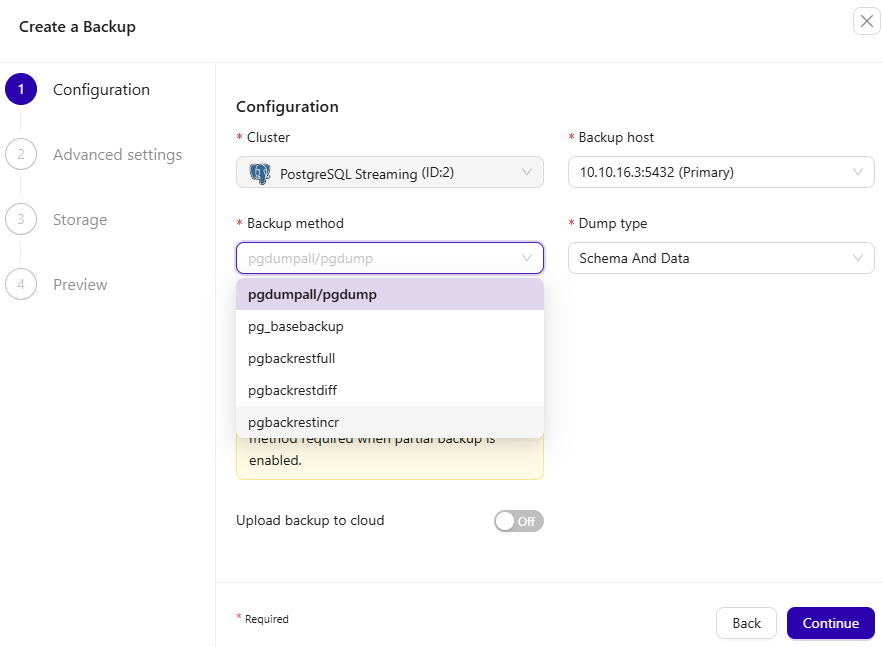
ClusterControl simplifies PostgreSQL backup and recovery management by centralizing scheduled backups, retention policies, restore operations, and point-in-time recovery planning, helping reduce operational overhead while improving disaster recovery readiness.
Monitoring PostgreSQL Using ClusterControl
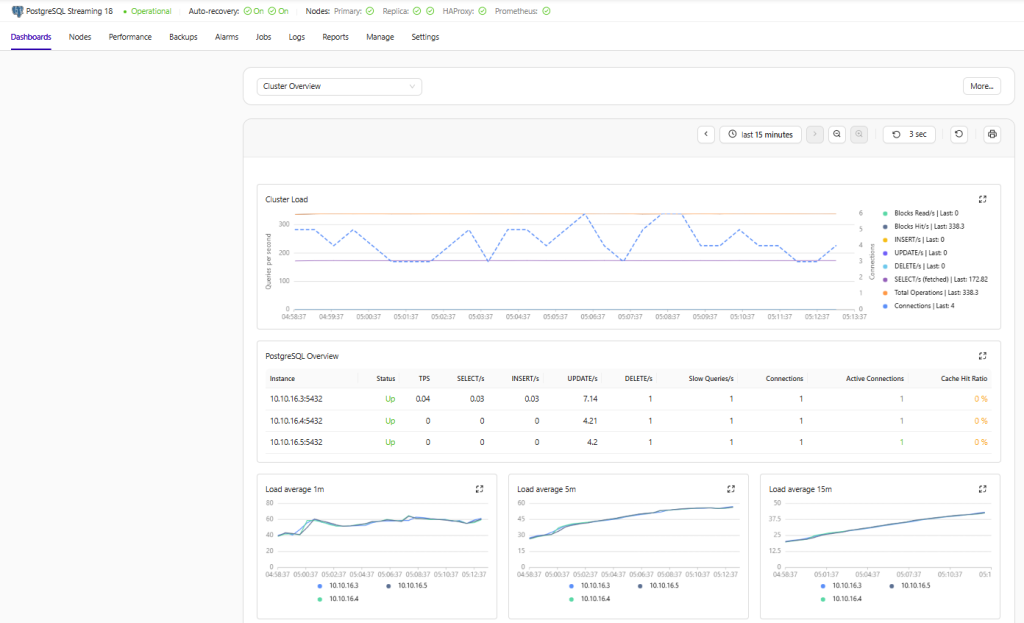
ClusterControl provides centralized PostgreSQL monitoring and operational management through node health visibility, replication monitoring, query insights, backup management, automatic failover, performance dashboards, and alerting capabilities, helping simplify PostgreSQL administration in production environments.
Conclusion
Migrating from SQL Server to PostgreSQL is no longer simply about reducing licensing costs. For many organizations, it is also an opportunity to modernize infrastructure, simplify operations, and build platforms that align with modern deployment models.
Using pgloader for schema migration, BCP for bulk data export, and PostgreSQL COPY for imports creates a migration workflow that remains flexible and manageable even for larger environments.
When combined with PostgreSQL Streaming Replication and ClusterControl, the resulting platform delivers operational scalability, monitoring visibility, and high availability suitable for production workloads.
Organizations running containerized applications, especially Dockerized environments, can benefit significantly from this type of PostgreSQL HA architecture as part of their modernization strategy.